I’ve been using the Insta360 Luna Ultra for over three months now, and in this video I’ll explain why it’s become the camera I reach for pretty much every day.
It’s also changed quite a bit since launch, with some fairly major firmware updates adding some significant new features.
I’ll cover all the features I’ve found genuinely useful, with some real-world examples of how I’ve actually been using them, as well as a few things I think could still be improved. And as always, I’ll also cover some of the less obvious features and details that you might not have seen covered in other reviews.
By the end of the article, you should have a pretty good idea whether it’s the right camera for you.
Overview
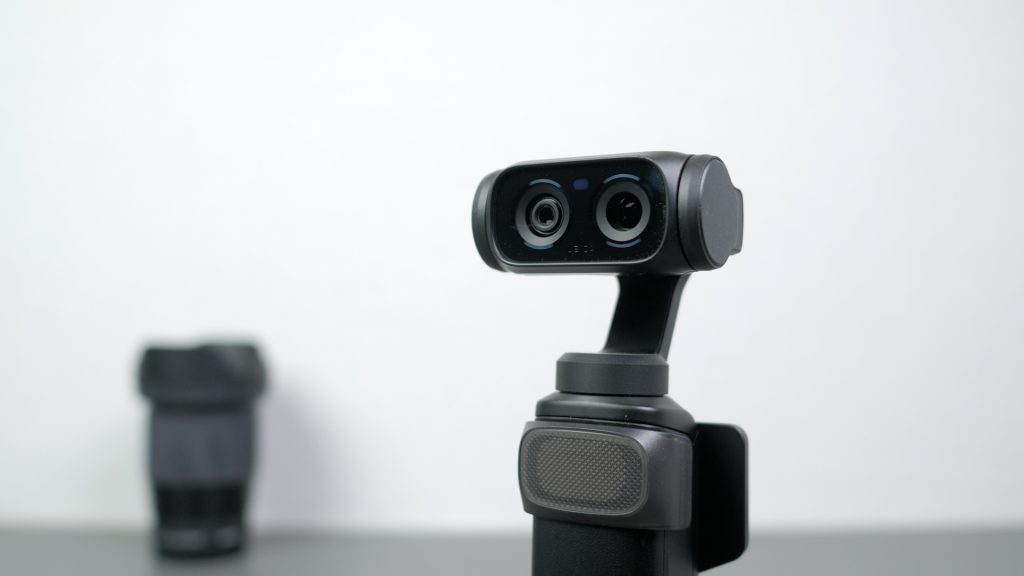
The Luna Ultra is a compact three-axis gimbal camera with two separate lens and sensor combinations. The main wide-angle camera uses a 1-inch sensor, while the 3x telephoto camera uses a smaller 1/1.3-inch sensor.
Build quality is very good. It feels solid, and despite using it pretty much every day for the last three months, including constantly removing and reattaching the screen, everything still feels as it did when I first got it.
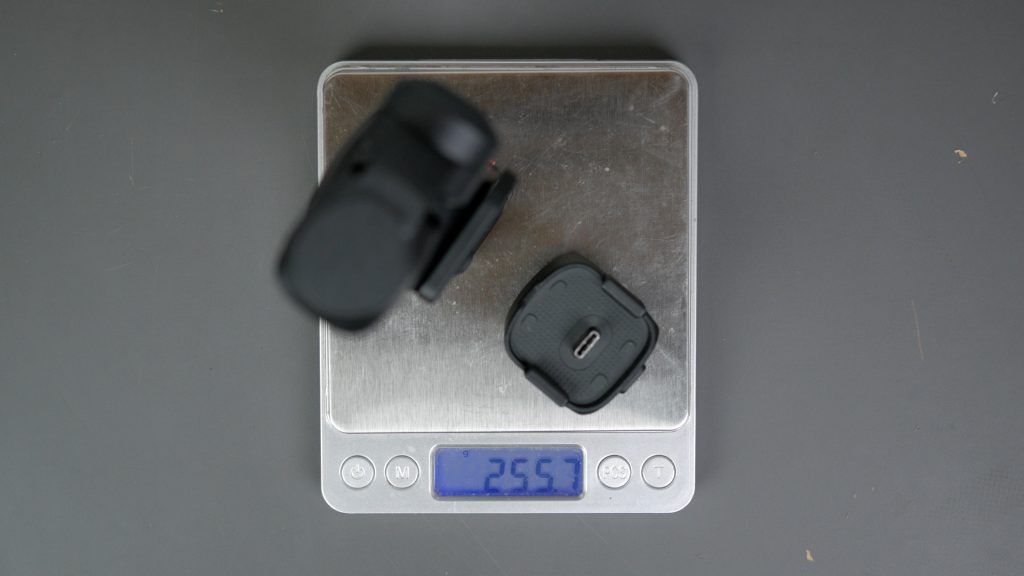
The camera itself weighs around 233g, or around 258g with the included 1/4-inch Thread Handle attached, which is how I tend to use it most of the time. It makes the camera a little easier to hold and gives you both a standard tripod thread and a set of small fold-out tripod legs, which are surprisingly handy.

You’ve got a proper joystick for controlling the gimbal, a dedicated zoom control, shutter button and two custom buttons, so most of the important controls are physical — you can pretty much just use the screen for framing.

There’s also 47GB of fast built-in storage, as well as a microSD card slot if you need more capacity.
As usual, there are various bundles available with different accessories included. I’ll be covering some of my favourite accessories in an upcoming video.
But probably the most unusual feature of the Luna Ultra — and one that’s turned out to be even more useful than I expected — is this detachable touchscreen, which also has a built-in microphone.
Detachable touchscreen
The entire touchscreen comes off the camera — and importantly, that includes the whole control interface too. So whether it’s attached or detached, you’ve still got the screen, joystick, zoom control, shutter button and custom buttons.
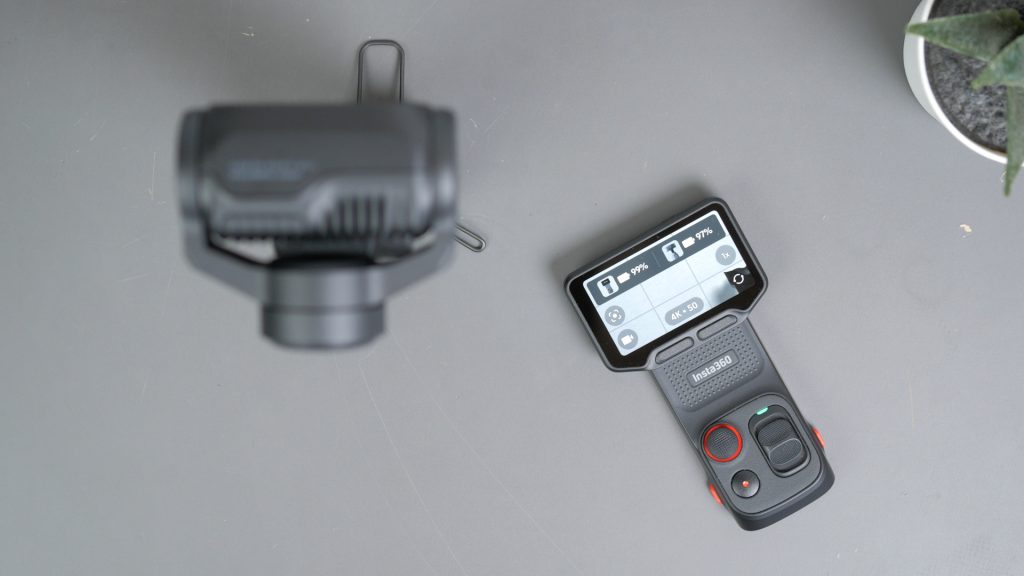
You can even turn the camera on and off remotely from the screen, so once you’ve positioned the camera, you can control everything without going back to it.
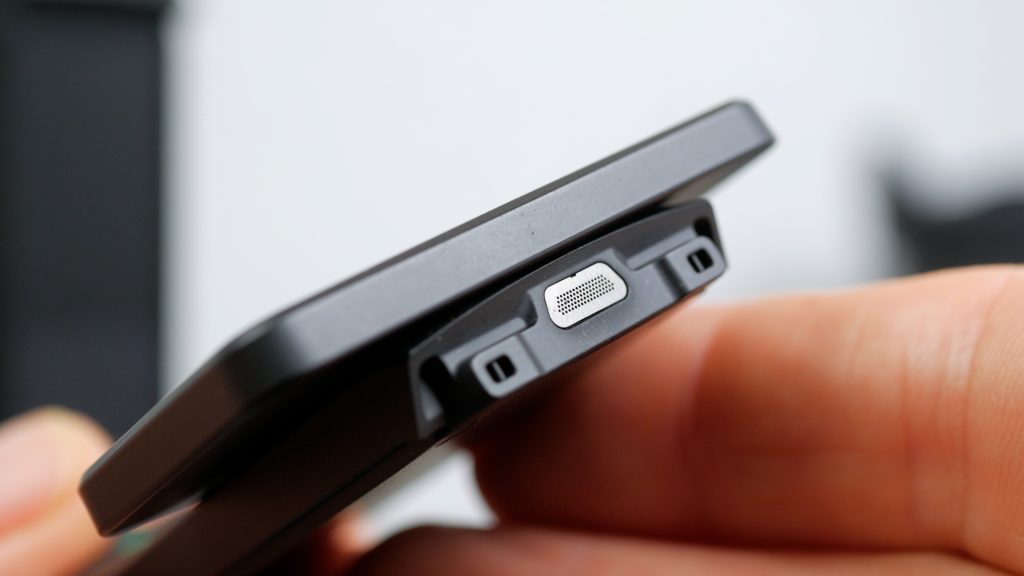
The screen also has its own built-in microphone. Every time you detach it, you’re asked whether you want to switch to the remote microphone. For the way I use the camera the answer is almost always yes, so I really wish there was an option to make that the default rather than having to confirm it every time. I’ll compare the actual audio quality to Insta360’s external mics shortly, but the quality is plenty good enough if you don’t have an external mic.
To remove the screen you give the two red release buttons a reasonably firm squeeze and it comes off very smoothly. Don’t half-press them and then yank the screen — when it does release, it can go flying.

The remote has its own small 210mAh battery, but there’s no way of charging it separately — you have to put it back on the camera, where it charges automatically.
For the way I normally use it, battery life has always been fine. I’m generally taking it off for a shot and putting it back on again afterwards, so it gets topped up regularly. But if you do run it down, the camera stops working and it is quite slow to recharge. I also tested it continuously detached, with the screen on the whole time at full brightness, while recording at 4K 50fps. After 37 minutes the screen was still at 45%. So I’d expect well over an hour of continuous use from the screen.
Insta360 quotes a maximum transmission range of 20 metres in an open, interference-free environment. In a more complex wireless environment they quote around 8 metres for a smooth preview, and with two wireless microphones connected they warn you may start seeing transmission lag beyond 5 metres.
The wireless transmission has definitely improved with firmware updates since I first got the camera, but I do occasionally find the preview image slightly breaks up. Importantly, though, it’s just the preview — the actual recording on the camera is fine.

Pretty much any camera can be controlled from an app, and I can even control my iPhone remotely from my Apple Watch, but this is just so much more convenient.
It’s always with the camera, it’s always charged and because it’s the camera’s whole interface rather than just a basic remote, I can control everything from it.

I usually work by myself, so it’s probably the most useful feature I’ve had on any camera I’ve owned or reviewed. And it’s probably the single biggest reason I reach for the Luna Ultra so often.
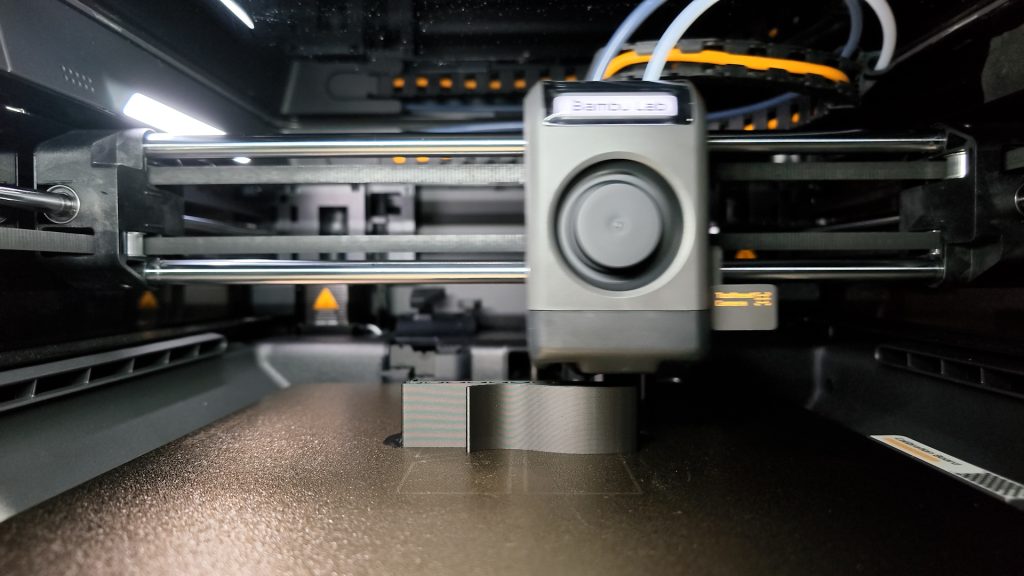
There are a couple of things I’d change though. There’s no convenient way of attaching the screen to yourself when you’re using it remotely, and there’s no way to lock the controls. I’d love some sort of built-in magnetic attachment or even a simple clip, so I could attach it to my clothing when I’m filming myself and moving around. And for longer recordings, it would be useful to have some way of charging the screen separately, or perhaps an optional charging dock, rather than having to put it back on the camera to charge it. I did 3D print this little clip, which is really handy — if I remember to take it with me.

Image quality
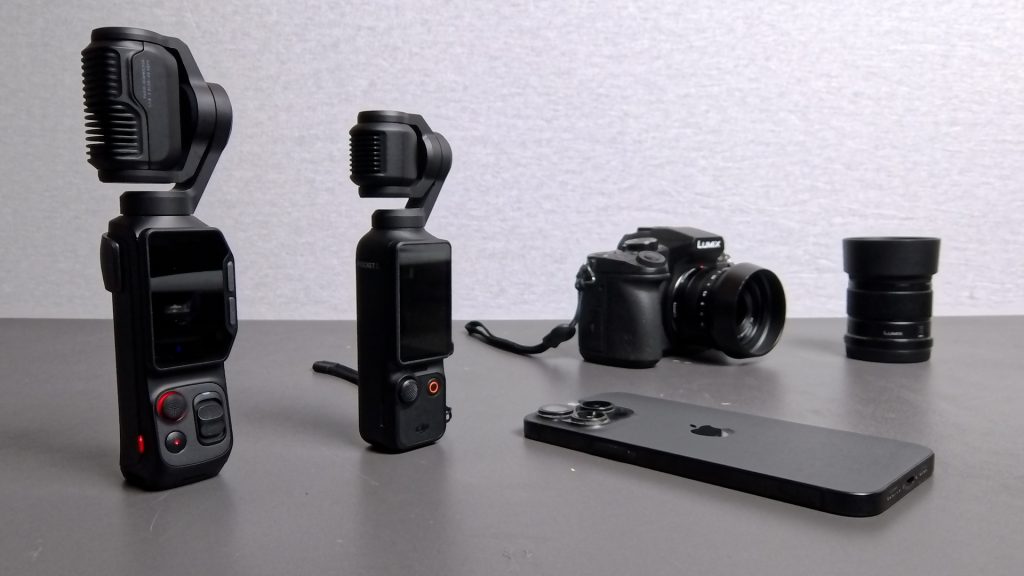
I’ve compared the Luna Ultra to my Osmo Pocket 3, my iPhone 15 Pro Max, my Panasonic mirrorless camera with interchangeable lenses and countless other cameras, and the image quality is very good, particularly from the wide-angle lens.
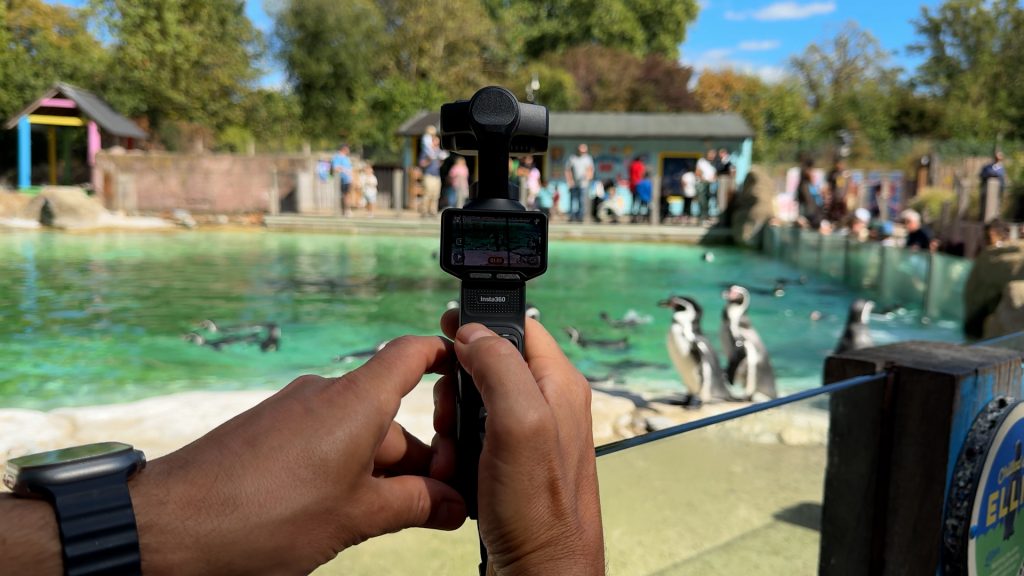
I’ve taken hours and hours of footage with the Luna Ultra over the last three months, both real-world footage from actually using the camera and more controlled testing, and there’ll be plenty of examples throughout the accompanying video for you to judge the image quality for yourself.
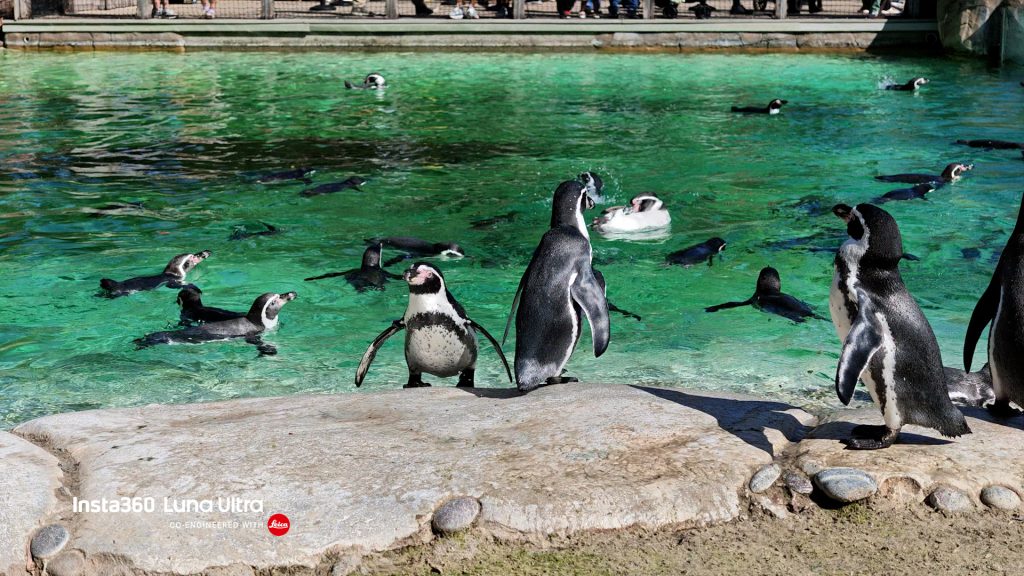
The telephoto lens does have a slightly smaller sensor, but I still have no hesitation using it, even in lower light, which I’ll come back to shortly.
I mainly use the Luna Ultra for video, but it’s actually a very capable stills camera too. In UltraPhoto mode you can shoot up to 37MP, while the standard Photo mode is up to 9MP and can also capture Live Photos, just like your smartphone.

There’s also a 200MP panorama mode, where the gimbal automatically rotates the camera and stitches multiple shots together.
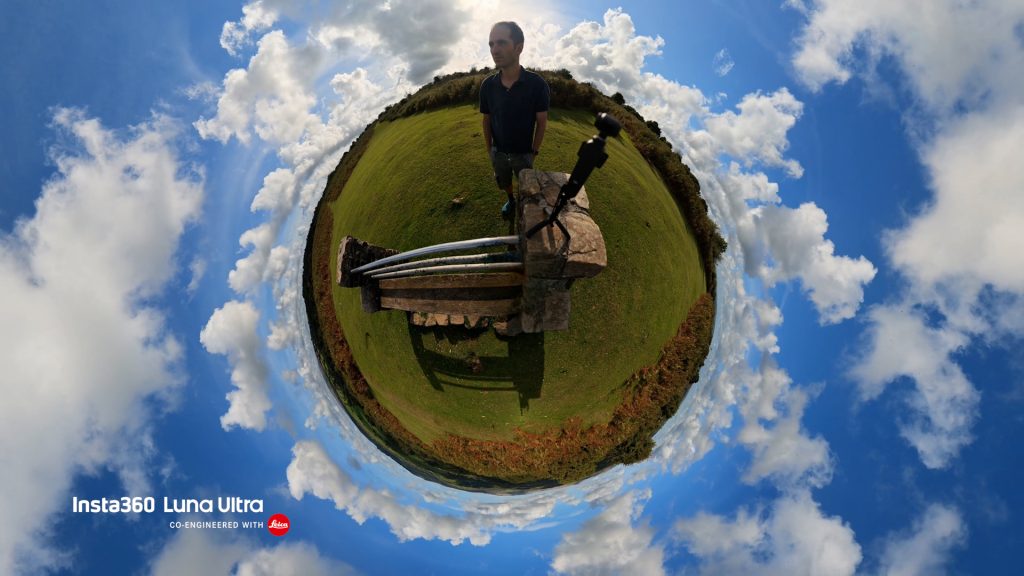
It can capture a full 360° panorama, which is great if you don’t have something like an Insta360 X5 or X6, and the quality is very good.
In Video mode you can shoot all the way up to 8K at 30fps, although you do lose some functionality at 8K. Personally, I’d only really use it in good lighting when I specifically wanted the extra resolution — perhaps to give me more freedom to crop into the image afterwards.

Typically I shoot in 4K at 50fps. Here in the UK, 50fps works better with some indoor lighting, and it gives me nice smooth footage with the option to slow it down if I need to.
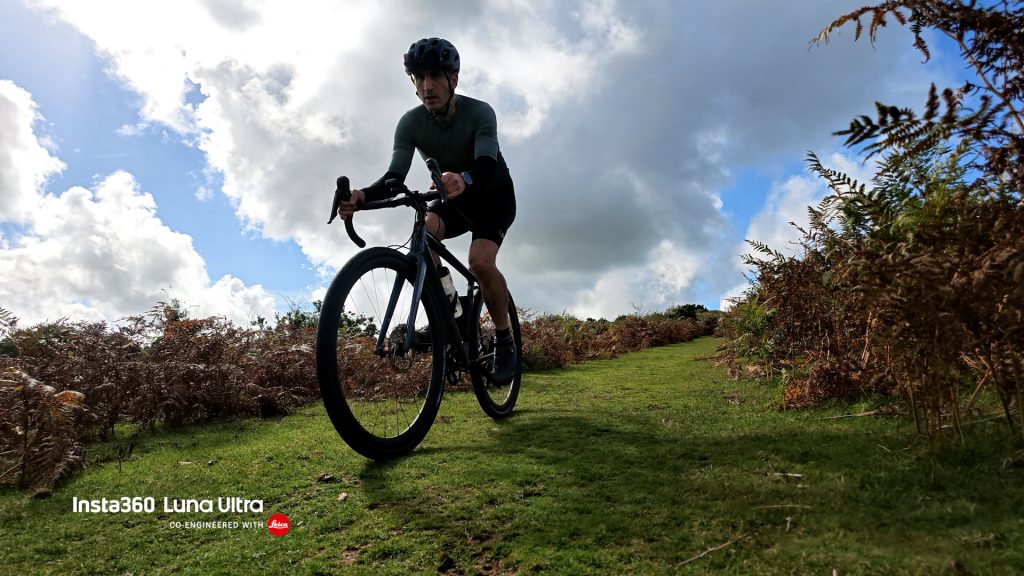
One setting I’d recommend changing is the video bitrate. By default it’s set to Standard, but changing it to High gives you the best possible image quality, at the expense of larger file sizes.
If you want to slow things down further, you can shoot at up to 4K 120fps, or even 240fps at 1080p, all in the normal Video mode. You will need good lighting for those higher frame rates, but although it’s not quite as impressive as the Osmo Pocket 4P, which can shoot at up to 4K 240fps, it beats my iPhone 15 Pro Max. And combined with the gimbal and tracking, which I’ll discuss shortly, you can get some great results.
There is also a dedicated Slow Motion mode, which automatically slows the footage down for you in-camera, but you don’t get any audio. It’s useful if you want to quickly share a slow-motion clip straight from the camera without having to edit it first.
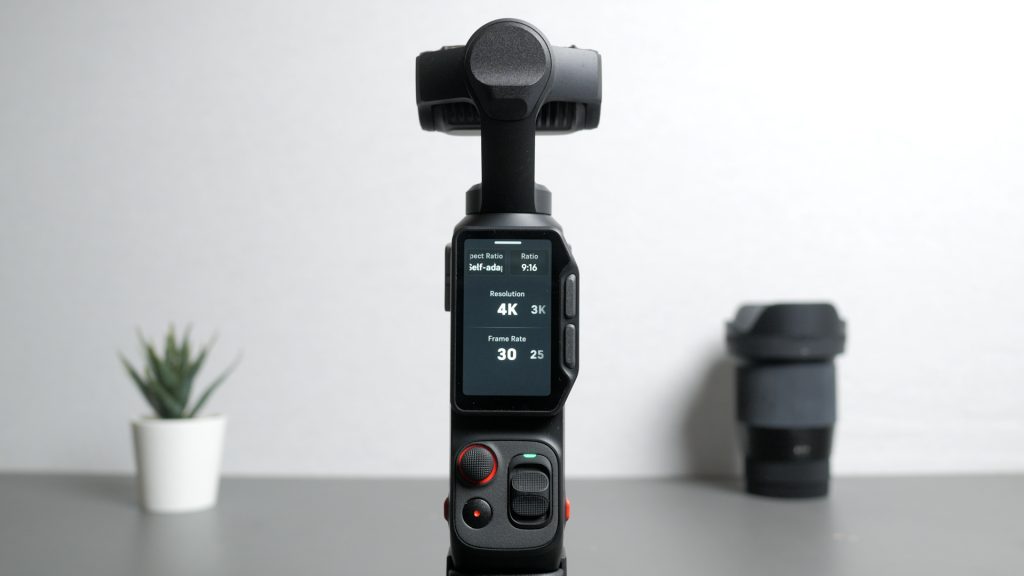
You can also shoot vertically without physically rotating the camera. In portrait mode you can shoot up to 4K 30fps, although effectively it’s cropping into the sensor rather than rotating the gimbal and camera.

If you want access to all the resolutions and frame rates, you can simply rotate the camera itself and shoot normally. Insta360 calls this “Lossless Portrait”, because you’re using the full sensor rather than cropping into it.

There’s also full manual control under the Pro settings. You can adjust shutter speed, ISO and white balance, although the aperture is fixed. There are no zebras or even a histogram on the camera itself to help you set manual exposure. You can display a histogram in the Insta360 app, but even with the small screen, I’d really like the option to have both of these available directly on the camera.
You can select a fixed colour temperature for white balance, but I would have liked the option to set a custom white balance. The camera does have a dedicated colour temperature sensor though, and I’ve generally found the automatic white balance to be accurate enough.

There are also three autofocus modes: AF-C, AF-S and Product Showcase. I generally leave it in AF-C, which continuously adjusts focus, while AF-S focuses once and then locks the focus. Product Showcase prioritises whatever is closest to the camera, which is particularly useful if you’re filming yourself and want to hold a product up in front of the lens.
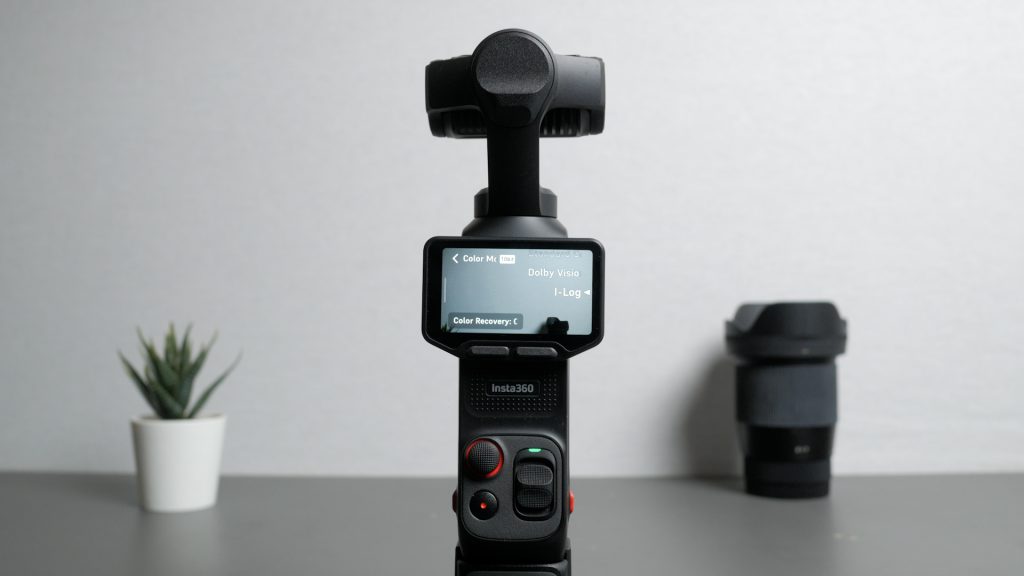
You can also shoot in 10-bit I-Log, which Insta360 claims gives you up to 14 stops of dynamic range and considerably more flexibility when colour grading. In fact, this whole talking-head section of my accompanying video was recorded in I-Log, and I just used Insta360’s standard I-Log conversion rather than doing any elaborate colour grading.
For something like this, where I’m recording one long clip and can grade the whole thing together, I can see the benefit. In general use, taking lots of short clips though, I find the extra work involved in shooting Log and grading everything more hassle than it’s worth.
Telephoto and zoom
Together with the detachable touchscreen, it’s the built-in second 3× 60mm-equivalent telephoto lens that makes this camera so much more useful for me compared to my old DJI Pocket 3.

There are also additional lossless zoom levels that effectively crop into the high-resolution sensors. A quick flick of the zoom slider jumps through the different focal lengths, including 2× using the main lens and 6× using the telephoto lens.
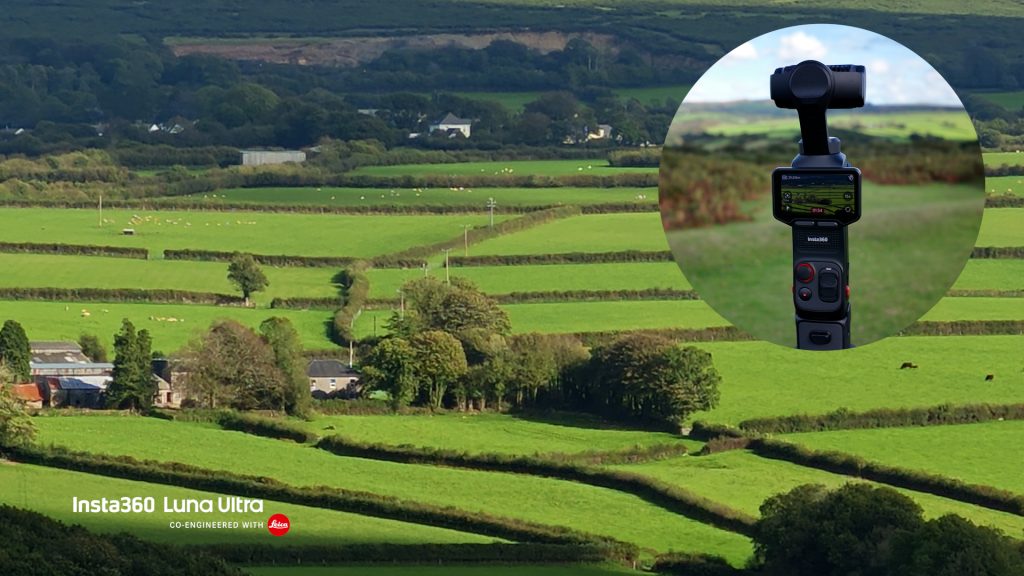
One thing I would like is a way to jump directly between the 1× and 3× lenses using the physical controls. You can do this by tapping the focal lengths on the touchscreen, but with the zoom rocker you have to step through the intermediate zoom levels. There are two configurable custom buttons, which are useful, but the options available for each are fairly limited and neither can simply be configured to switch between the 1× and 3× lenses.
You can also hold the zoom slider for a smooth continuous zoom, although once you move away from those fixed focal lengths you’re using digital zoom, so you will lose some image quality. And when it switches between the main and 3× telephoto lenses, there’s a jump in the image alignment and the colours change slightly too.
There’s also a more lossy 12× digital zoom, and they’ve just added a whopping 15× zoom with the latest firmware.
I wouldn’t normally use these higher digital zoom levels, but again, combined with the gimbal and tracking, they can be useful.
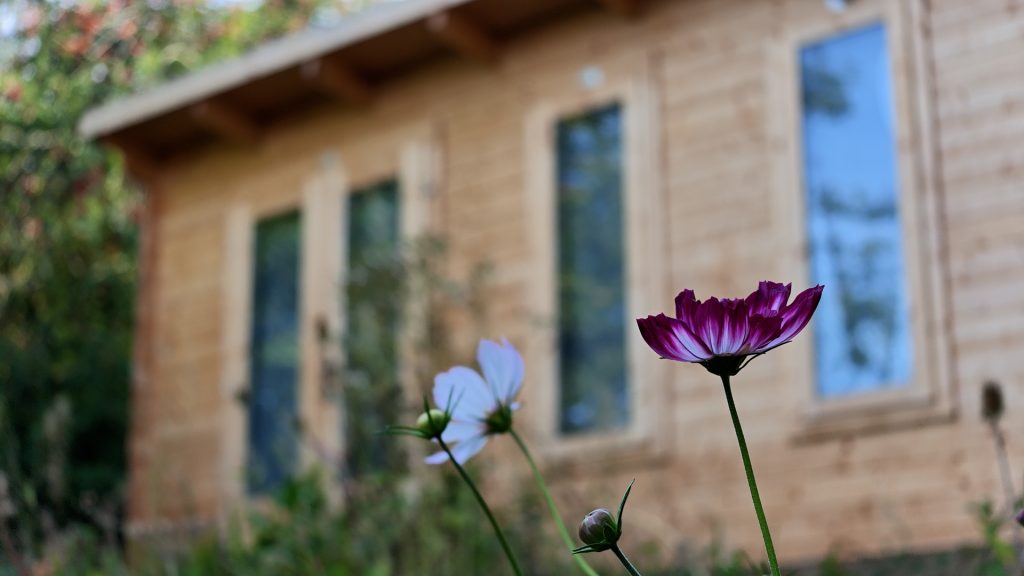
Of course the extra reach is handy, but there are other advantages too. The telephoto lens can focus as close as 15cm, which gives you some nice background blur and makes it great for product shots — especially combined with the gimbal and tracking.
Gimbal and tracking
There’s not really anything revolutionary about the gimbal itself, but if you’ve never used one of these cameras before, the three-axis mechanical stabilisation gives you incredibly smooth footage.
The one movement it can’t compensate for is the up-and-down movement as you walk, so you do still need to be a little careful with how you move to minimise that vertical bobbing.
You can also get some really nice smooth movements when you deliberately move the camera. For example, in this shot I’m moving from the sun behind the clouds down to the solar panels on this roof solar setup.
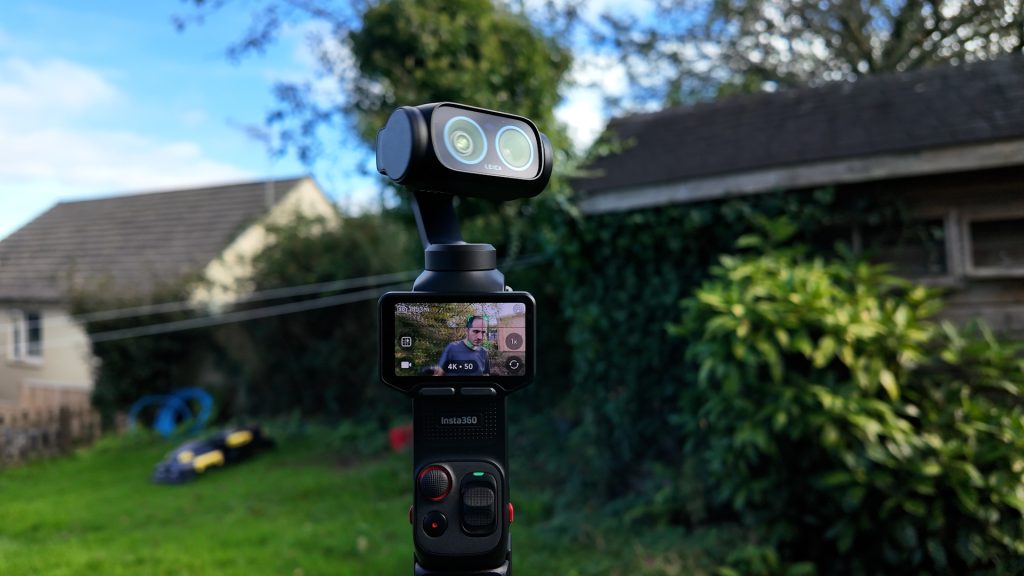
Tracking on these cameras keeps getting better and better, and the tracking on the Luna Ultra is superb. They’ve also made it incredibly easy to use.
By default, you can just press the joystick and it’ll identify what it thinks you want to track and lock onto it. It works almost perfectly with people, and if you go out of frame it’ll keep looking for you indefinitely and pick you up again when you come back into view.
You can track groups of up to eight people as well. You just hold down the joystick and it’ll enable group tracking when there are multiple people in the frame.
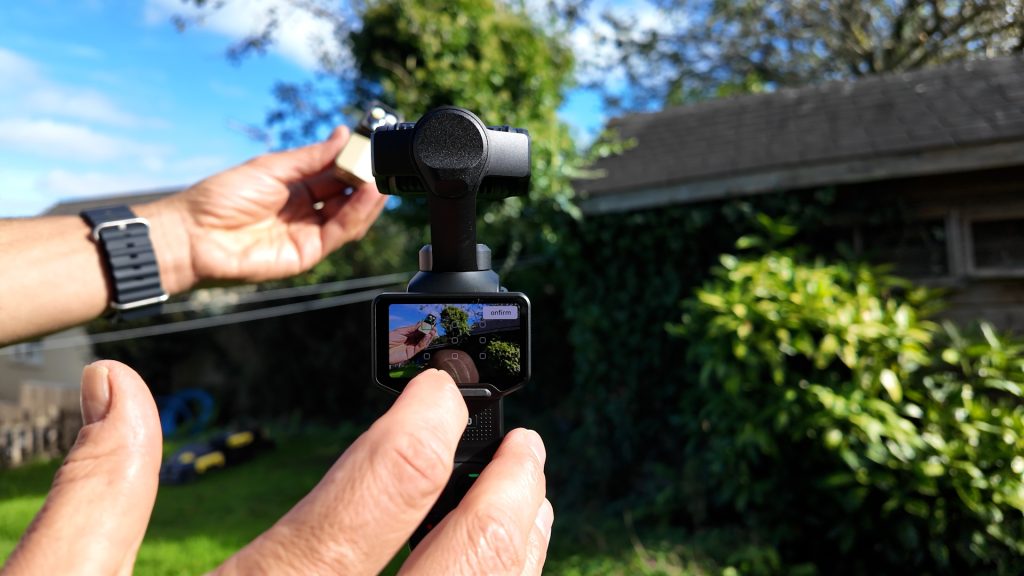
Tracking also works with pets and other objects, and you can double-tap the person, animal or object you want to track on the touchscreen, or draw a box around your subject with your finger.
Once something is tracking, you can use the joystick or Smart Framing to position your subject wherever you want it in the frame.
All of this is just invaluable when you’re creating on your own.
My one wish would be for full 360° rotation of the gimbal. Currently the controllable pan range is 292°, which is generally enough as long as you anticipate the restriction.
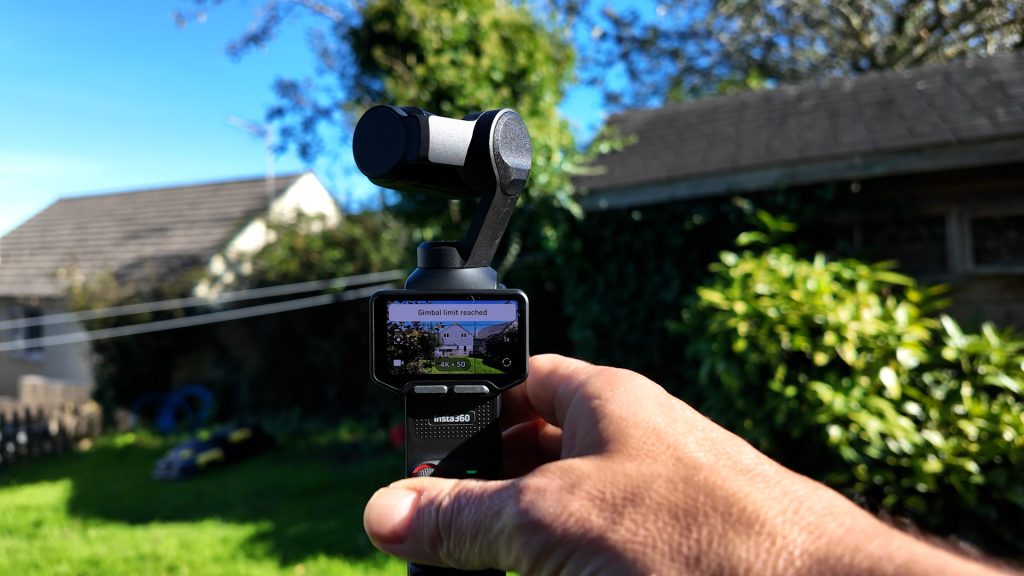
From its default position at turn on, there’s only a relatively small amount of movement available to the left with the joystick, whereas there’s much more movement to the right. So if I’m going to be tracking myself, I normally move the gimbal about 90° to the right first and then turn the whole camera to face me. That puts it closer to the middle of its available range, giving the tracking much more movement in either direction.
Low light
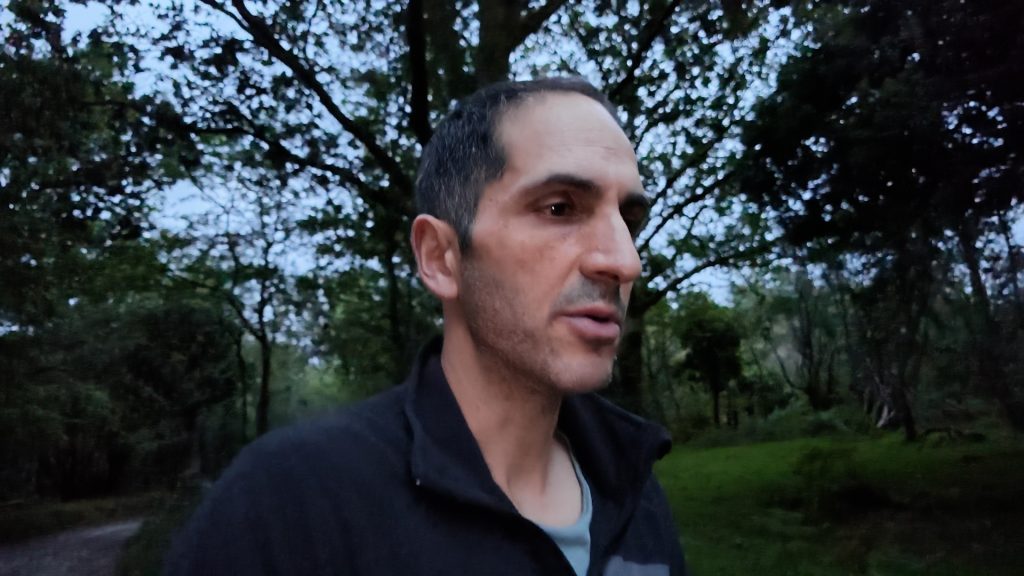
Like most recent Insta360 cameras, there’s a very good low-light mode, or PureVideo as Insta360 calls it. This uses Insta360’s Triple AI Chip architecture for additional AI noise reduction and processing in low light.
Conveniently, even if you don’t select PureVideo, if the camera detects low light when you start recording in normal Video mode, it automatically enables Low-Light Enhancement, which gives essentially the same results, although Insta360 says it consumes slightly more power.

One thing to be aware of is that it only detects the lighting conditions when you start recording. So if you start recording in good light and then move somewhere dark, Low-Light Enhancement won’t automatically kick in. If you know you’re going to be shooting in low light, you’re better off selecting PureVideo from the start and tracking works better too.

Regardless of which mode you use, it does a very good job in some extremely low-light conditions and even tracking works well. I’ve managed to get more than usable results even when there’s only a very small amount of light available.
Audio

Audio never seems like the most exciting feature, but the Luna Ultra has some very interesting audio options. There are four microphones built into the camera itself, together with a built-in wind guard, and I’ve found the audio straight from the camera very good.
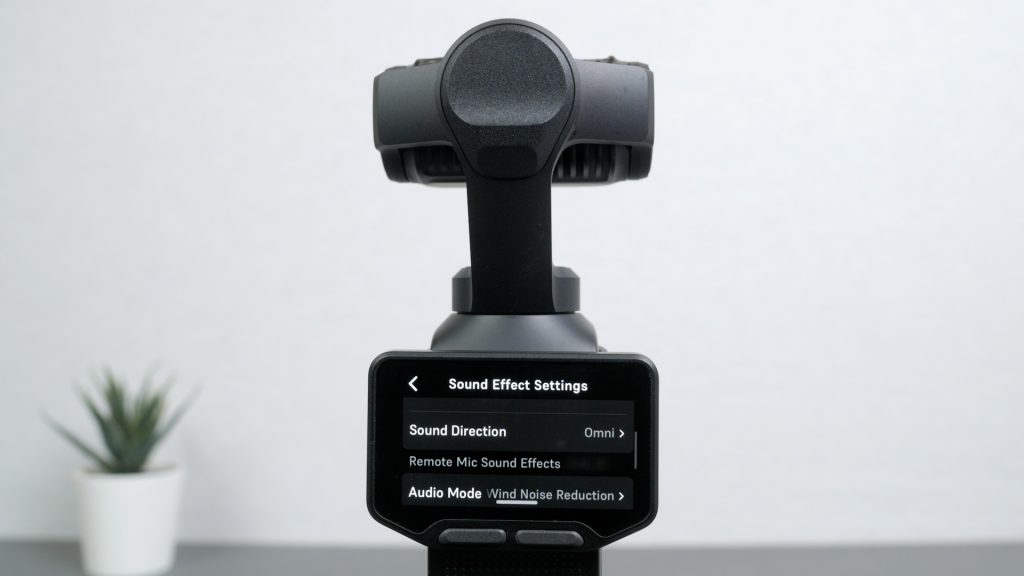
There are quite a few options for configuring the built-in microphones too. You can choose Original Audio, Wind Noise Reduction or Voice Enhancement, and independently choose whether you want sound picked up from all around the camera, from the front and rear, or just from the front. So there’s actually quite a bit of control over how the built-in microphones behave.
But probably the most useful feature for me is the additional microphone built into the detachable screen. I’ve actually used this several times, even though I have external wireless microphones, simply because it’s already there. If I’m filming myself, I just detach the screen and I’ve immediately got a wireless microphone as well as a monitor and remote control, without having to bring or set up anything else.
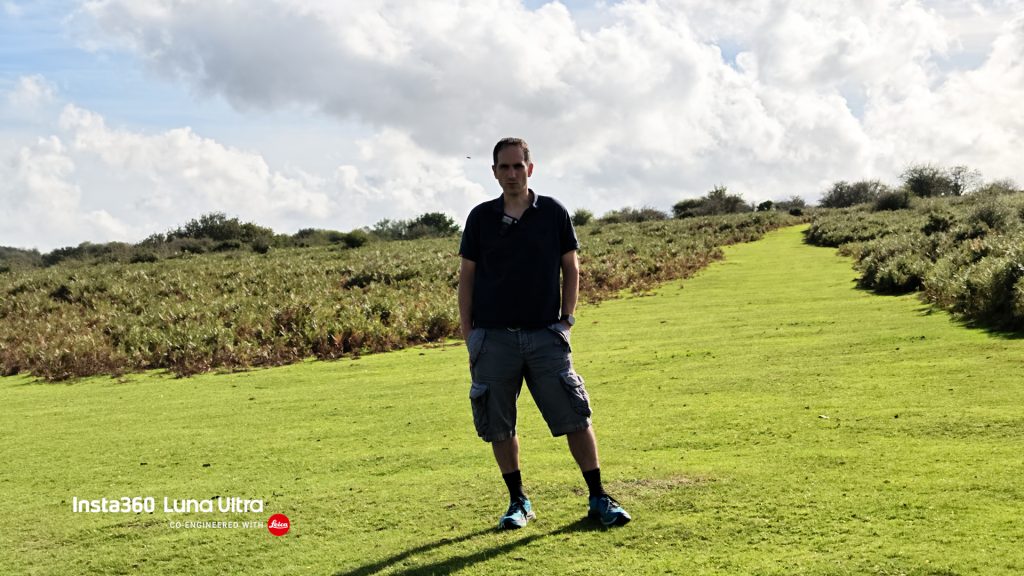
The 3D printed clip I showed earlier actually works pretty well for this if I clip it somewhere around my collar. But again, it is a shame there’s nothing like this included with the camera, and some sort of small wind muff for the screen microphone would be useful too.

If you want better audio, you can connect Insta360’s Mic Pro or the much cheaper Mic Air directly to the Luna Ultra without needing a separate receiver. It does use Bluetooth, but it’s not a standard Bluetooth audio connection. It uses Bluetooth SPP to carry Insta360’s proprietary 48kHz Direct Audio stream, which gives you much higher quality audio than you’d normally associate with a Bluetooth microphone.
And there are actually two wireless microphone slots, so you can connect two Mic Airs or two Mic Pros directly to the camera at the same time — although you can’t mix the two types. This is useful if you’re recording two people, for example. You can also configure the microphones individually from the camera, including things like gain and noise reduction.
And there’s also a useful Built-in Audio Sync option. Even when you’re using the microphone in the detachable screen, you can still record the microphones in the camera itself as a separate audio file. So you could use the screen microphone for your voice while separately capturing the ambient sound around the camera, which can be very useful.
The same feature works with external microphones too. But one limitation is that once you connect an external microphone, either wirelessly or over USB-C, you can’t use the microphone in the detachable screen at the same time.

You can also use microphones from other brands via the USB-C port. For example, I can plug my DJI Mic 3 receiver into the USB-C port and it’s immediately recognized.
The only real limitation is that you can’t directly connect third-party Bluetooth microphones. The direct wireless connection is currently limited to Insta360’s Mic Pro and Mic Air. But that’s not a huge loss for me — standard Bluetooth microphone audio generally isn’t something I’d choose for good-quality recording anyway.

There’s also a new Stage Mode in the latest firmware, designed specifically for concerts and performances. As well as optimising the image for stage lighting and longer-range shooting, it has dedicated Stage Audio and Ambient Audio options. Stage Audio focuses more on the performance and reduces surrounding audience noise, while Ambient Audio captures more of the venue and crowd. I haven’t had an opportunity to test that yet, so I can’t comment on how well it works in practice.
Battery, Storage & Everyday Use
The built-in 1550mAh battery is quoted by Insta360 as lasting up to four hours, but that’s recording at only 1080p with the screen and Wi-Fi turned off.

In my worst case scenario test, recording indoors continuously at 4K 50fps with the screen detached and permanently on, it recorded for 37 minutes before shutting down due to overheating. I measured the camera at a pretty hot 75°C, but the battery had only dropped to 64%. Based on that consumption, I’d expect somewhere around an hour and a half to two hours of recording at these more demanding settings, assuming heat wasn’t an issue.
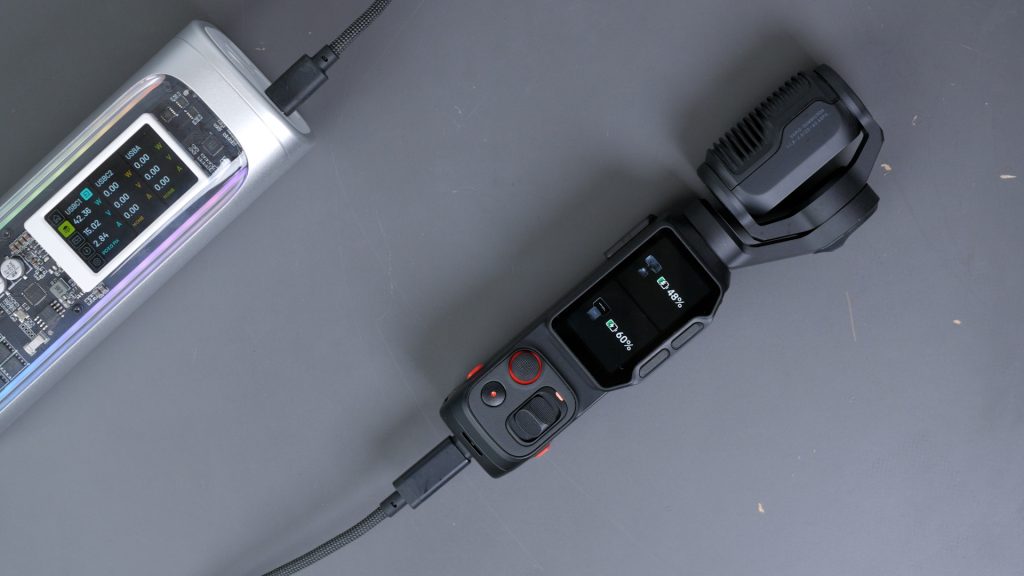
Charging is very fast. Insta360 quotes 80% in around 23 minutes and a full charge in around 38 minutes using a 45 W fast charger. I saw maximum charging speeds of over 40 W in my testing which is impressive.
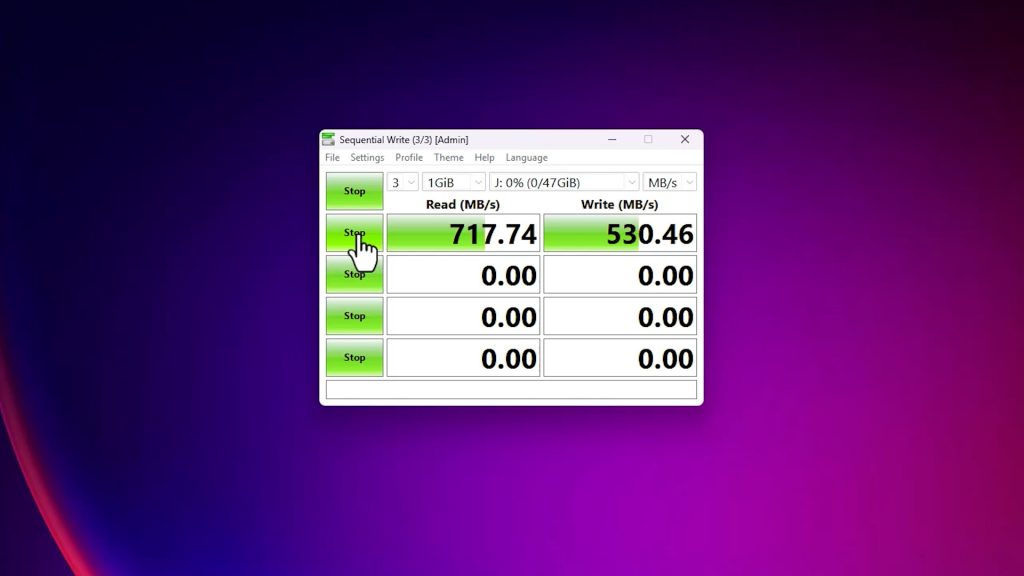
The built-in 47GB storage isn’t just useful if you forget your microSD card — it’s also the fastest way to get files off the Luna Ultra. You do need a USB 3 cable though — the supplied cable is only USB 2 and considerably slower. With a USB 3 cable, I got transfer speeds of up to around 400MB/s.

The camera supports microSD cards up to 2TB, but transferring files directly from the card through the camera is considerably slower. Even with a fast card and USB 3 cable, I only got around 80MB/s. So it’s faster to remove the microSD card and use a fast card reader instead.
You can choose whether recordings are saved to the internal storage or microSD card, but I’d like an option for the camera to automatically switch to the other storage location when one becomes full. Ideally this would be configurable, so you could choose which storage it uses first.
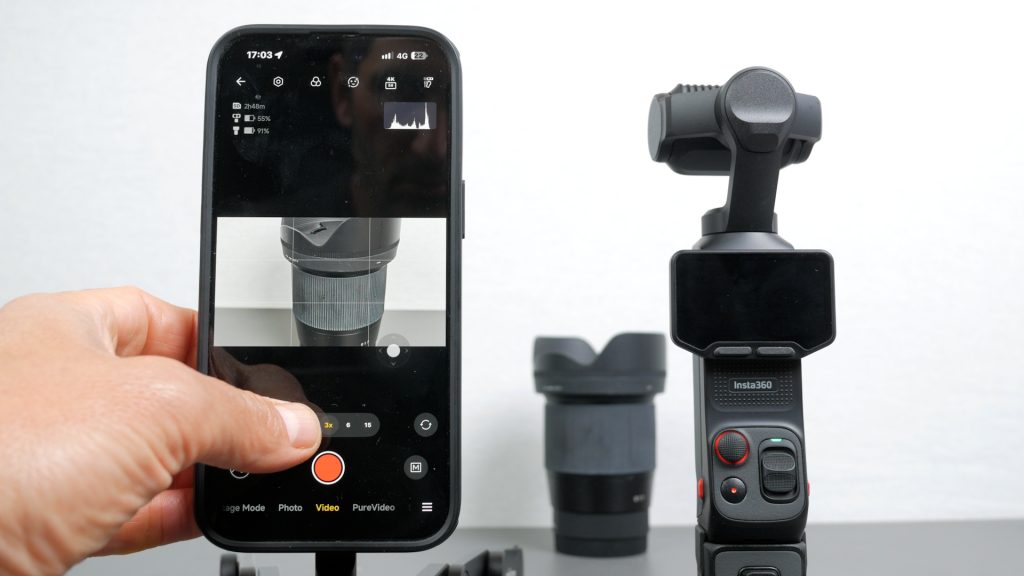
Of course, you can also use the very capable Insta360 app to transfer your footage wirelessly, and transfer speeds are pretty fast. I’ve covered the Insta360 app on multiple occasions, so I won’t go into too much detail here, but it’s great for configuring settings and setting up shots if, for some reason, you don’t want to use the detachable screen. It also has plenty of easy-to-use editing features and AI tools if you want to quickly edit and share your footage.
One thing you do need to be careful of is water. Unlike an action camera, the Luna Ultra isn’t waterproof or even officially splash resistant. I’ve been caught out in some light rain with it and it’s been fine, but it’s always a bit worrying because you really don’t know how much water it can tolerate. And although the build quality is excellent, with the exposed gimbal and lenses it’s obviously a lot more fragile than an action camera, which is always in the back of my mind when I’m carrying it around. My bundle did include a hard case, which offers some protection, but it’s still a camera I tend to look after carefully, rather than just throwing in a bag.
Conclusions
So after more than three months, has the Luna Ultra replaced all my other cameras?

Not quite, but when I’m filming something for the channel and I just need to grab a camera and get the clip, I’m using this camera almost every time.

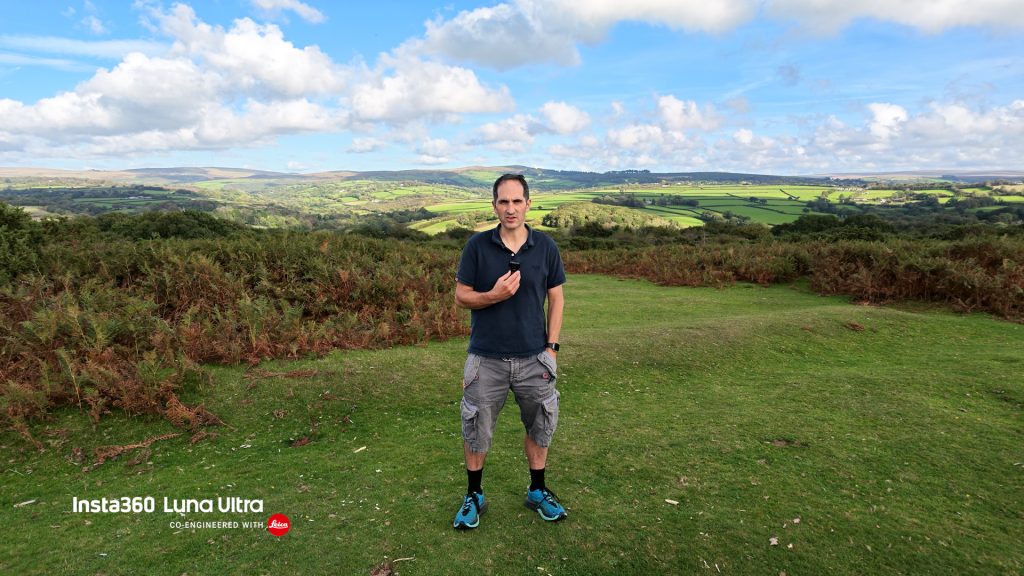
And it’s mainly down to an almost perfect combination of image quality and convenience. Without doubt, the biggest factor is the detachable screen. Being able to position the camera, detach the screen and still have proper monitoring, physical controls and even a wireless microphone when I’m standing in front of the camera is a big deal for me, and I imagine it would be for most people wanting to film themselves.
Add the very good image quality, the genuinely useful telephoto lens, excellent tracking and the gimbal, and it’s just an incredibly easy camera to use. It requires very little effort to get a good shot with.
It’s not perfect. I’d still really like full 360° gimbal rotation, and just by the nature of this type of camera, with the exposed gimbal and lenses, you do have to be a bit more careful with it than something like an action camera.
But ultimately, neither of those things has stopped me using it, and after more than three months, I’m still reaching for the Luna Ultra pretty much every day.

I’ll also be taking a closer look at some of the accessories for the Luna Ultra in an upcoming article and video, so make sure you’re subscribed to my YouTube channel if you don’t want to miss that.
Purchase directly from Insta360:
Using my link doesn’t cost you anything, but I may earn a small commission which helps support the channel. I’ll also add the latest discounts and freebies here when available.
Leave a Reply